Organizations
An organization is the container for your sites, your teammates, and the settings they share. Every project lives in exactly one.
You get a default organization when you sign up. Creating more is how you separate clients, teams, or lines of work.
Why Use More Than One
- Agencies — one organization per client, so each client’s team sees only their own sites
- Teams — separate production work from experiments
- Handover — build in your organization, then move the project to the client’s
Members and roles are set per organization, so someone can be an admin in one and an editor in another.
Creating an Organization
- Open the organization switcher at the top of the sidebar
- Click Add New Org
- Enter an Organization Name
- Create
Plan limits apply. Pro allows two organizations; accounts without a paid plan have only their default organization. See Plans & Limits for each tier. Self-hosted installs have no limit.
Switching
Use the organization switcher, or press Cmd+K and type the organization’s name — organizations are a global search group.
Sitepins remembers the last organization you worked in and returns you there next time.
Organization Settings
Organization Settings has three sections:
| Section | Contents |
|---|---|
| General | Name, thumbnail, archive, delete |
| Members | People and their roles |
| Sandbox | Vercel connection for live preview |
General
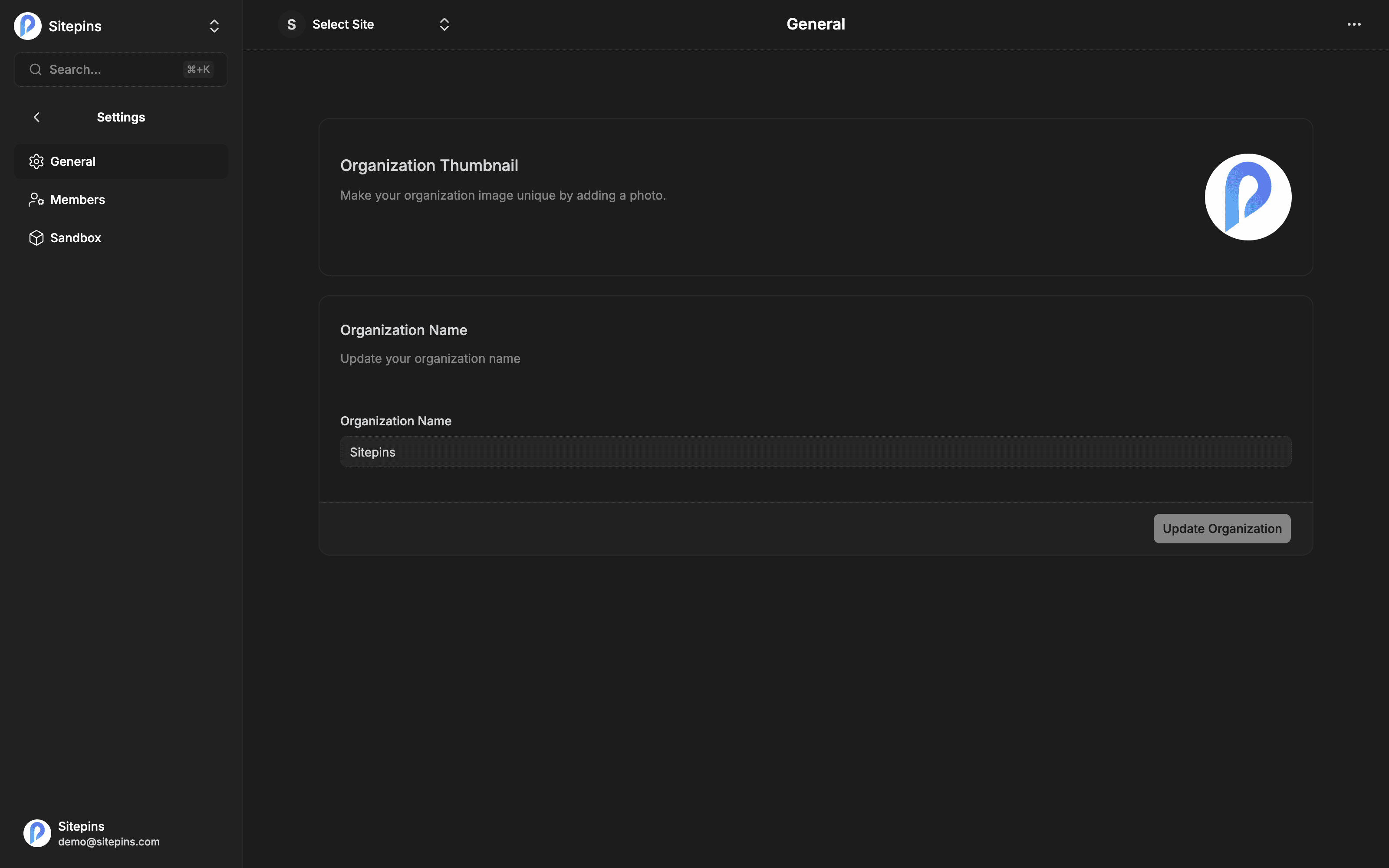
- Organization Thumbnail — the image in the switcher and lists
- Organization Name — click Update Organization to save
Viewing this page is open to all members. Editing requires admin or owner.
Archiving
Archiving hides an organization without deleting anything.
- It disappears from your active organization list
- Its projects become read-only
- It stops counting against your plan’s organization limit
- Restore Organization brings it back exactly as it was
Right for finished client work you want to keep but not see every day.
Leaving an Organization
If you are a member of an organization (with the admin or editor role) and no longer need access, you can leave the organization at any time:
- Go to Organization Settings → General and scroll down to the Danger Zone, then click Leave Organization (or click your own action menu in Organization Settings → Members).
- Confirm the prompt to leave.
The organization owner cannot leave the organization. If you are the owner and need to step down, transfer project ownership or delete/archive the organization instead.
Leaving an organization immediately revokes your access to its projects and shared settings. Your past Git commits remain completely untouched in the repository.
Deleting
Deleting removes the organization, its projects, its members, and its settings from Sitepins. You’ll be asked to type CONFIRM.
This deletes every project in the organization from Sitepins. Your Git repositories are untouched — Sitepins never deletes a repo. But every project’s schemas, snippets, arrangement, and settings go with it, and reconnecting those repositories means setting them up again.
Requires the owner role. Archive instead if there’s any chance you’ll want it back.
The Default Organization
Your first organization can’t be archived or deleted — those options don’t appear for it. It’s the fallback that guarantees you always have somewhere to put a project. You can rename it and change its thumbnail like any other.
When a Plan Downgrades
If a paid plan lapses or is cancelled and you’re over what the account falls back to, Sitepins archives the excess rather than deleting anything:
- Organizations beyond the limit are archived, newest first
- Projects beyond the limit are archived, oldest first
- Members beyond the limit are trimmed, keeping the longest-standing
Nothing is deleted, and everything is restored when you upgrade again. See Plans & Limits.