Code Editor
Pro plan. Available on Pro and above, during the free trial, and in every self-hosted install.
The forms and the visual editor cover content. The code editor covers everything else — components, styles, build config, a stray JSON file — without leaving Sitepins.
Opening It
Three ways in:
- Code in the sidebar, which browses your whole repository
- Edit as code in a content file’s ⋮ menu
- Edit as code in a config file’s … menu
Files open in the editor; folders open a directory listing you can browse further.
The Editor
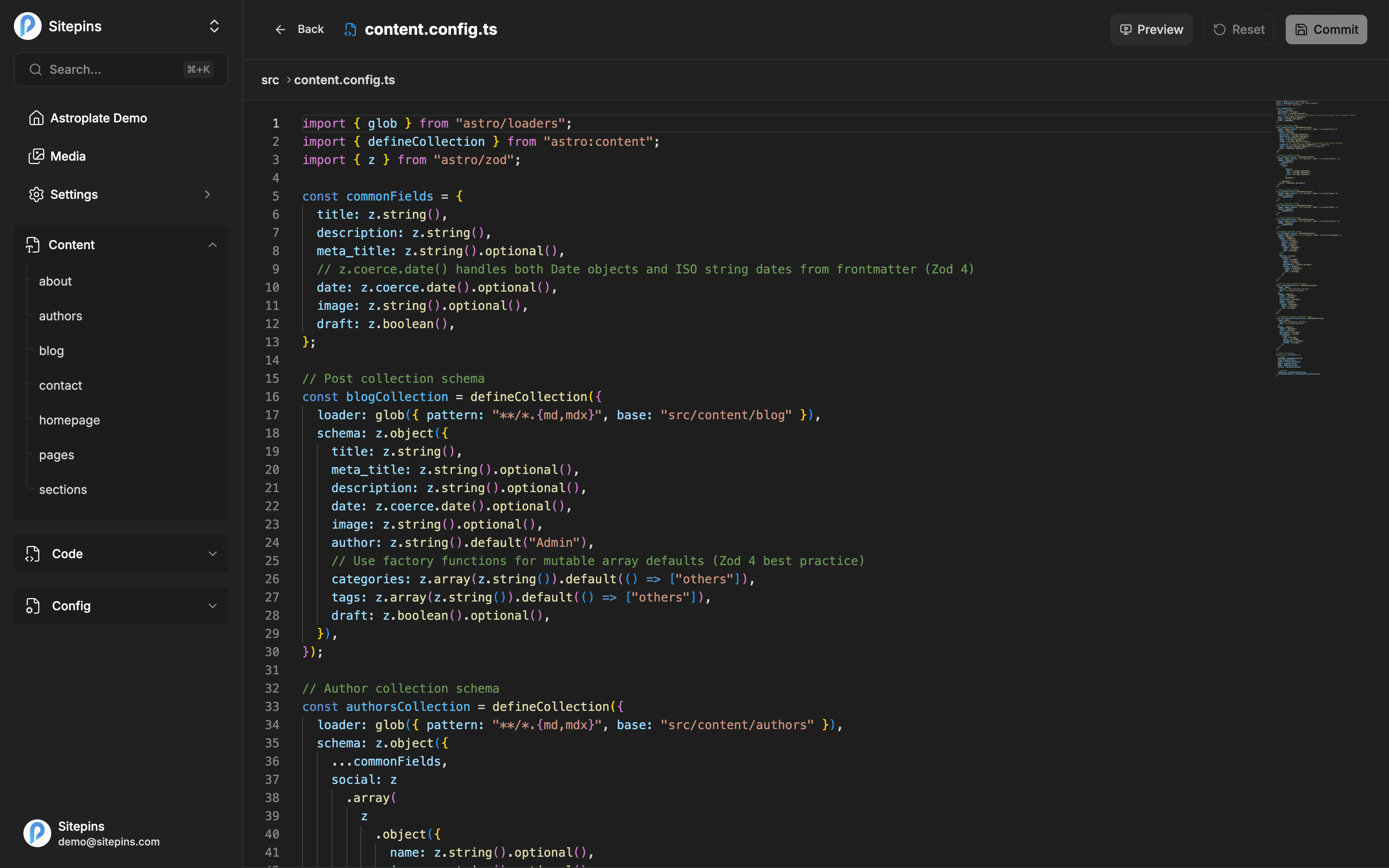
Syntax highlighting is picked from the file extension, and the theme follows your light/dark preference. You get:
- Line numbers, folding, and word wrap
- The file’s icon and breadcrumb path in the header
- Presence avatars showing anyone else in the same file
- A Deployment status indicator showing live CI/CD build status directly in the editor header
- A Preview button, if live preview is available
AI Code Copilot (Cmd+I / Ctrl+I)
Requires an AI provider connected in AI Agent settings or a server-configured key.
Press Cmd+I (macOS) or Ctrl+I (Windows/Linux) — or click the AI copilot button on the code editor toolbar — anywhere inside Monaco to summon the inline AI prompt widget:
- Inline Code Edits & Refactoring: Type an instruction (such as “Add TypeScript types”, “Refactor this utility to use async/await”, or “Convert these Tailwind classes to dark mode”) to transform the highlighted code or file.
- Explain Code: Highlight any unfamiliar function, syntax, or regular expression and ask the AI to explain how it works.
- Interactive Diff Review: The editor renders an inline diff showing insertions and deletions before touching your code. Review the proposed changes, then press Accept (Cmd+Enter) to apply or Reject (Esc) to discard.
Saving
Save commits the file directly to the current branch. There’s no draft step here — the code editor writes to Git.
- Reset discards your changes and reloads the file
- Discard asks for confirmation before throwing away edits
- Navigating away with unsaved changes prompts you first
If a live preview is running, saving syncs it.
Directory View
Opening a folder in the Code section lists its files with:
- File name
- Size
- Last modified
Plus search, sorting, and pagination. This is the fastest way to find a file when you know roughly where it lives but not its exact name — though global search is usually faster still.
When to Use It
Good uses: fixing a typo in a template, tweaking a CSS value, editing a build config, correcting frontmatter the form can’t express, inspecting a file you’re not sure about.
Think twice: large refactors, anything you’d want to test locally first, changes across many files. The code editor commits straight to your branch. For anything substantial, work on a branch so it can be reviewed before it reaches production.
Code Editor vs Markdown Mode
Two different editors:
- Markdown mode is the raw view of a content file, sitting beside the frontmatter form, with the same draft and publish options as the visual editor.
- The code editor is for any file in the repository, with no frontmatter form and a direct commit on save.
For a Markdown file you’re writing, use Markdown mode. For a Markdown file whose structure is broken and needs surgery, the code editor gives you the raw file with nothing interpreting it.
What Editors See
Without a paid plan, the Code section in the sidebar is replaced with an upgrade prompt, “Edit as code” doesn’t appear in file menus, and code files are excluded from global search results. Content, media, and config editing are unaffected.