Team & Roles
Sitepins exists so people who don’t use Git can edit content. Inviting them reflects that: you add someone by email address, and they never need a GitHub or GitLab account.
Inviting Someone
Go to Organization Settings → Members and click Add Member.
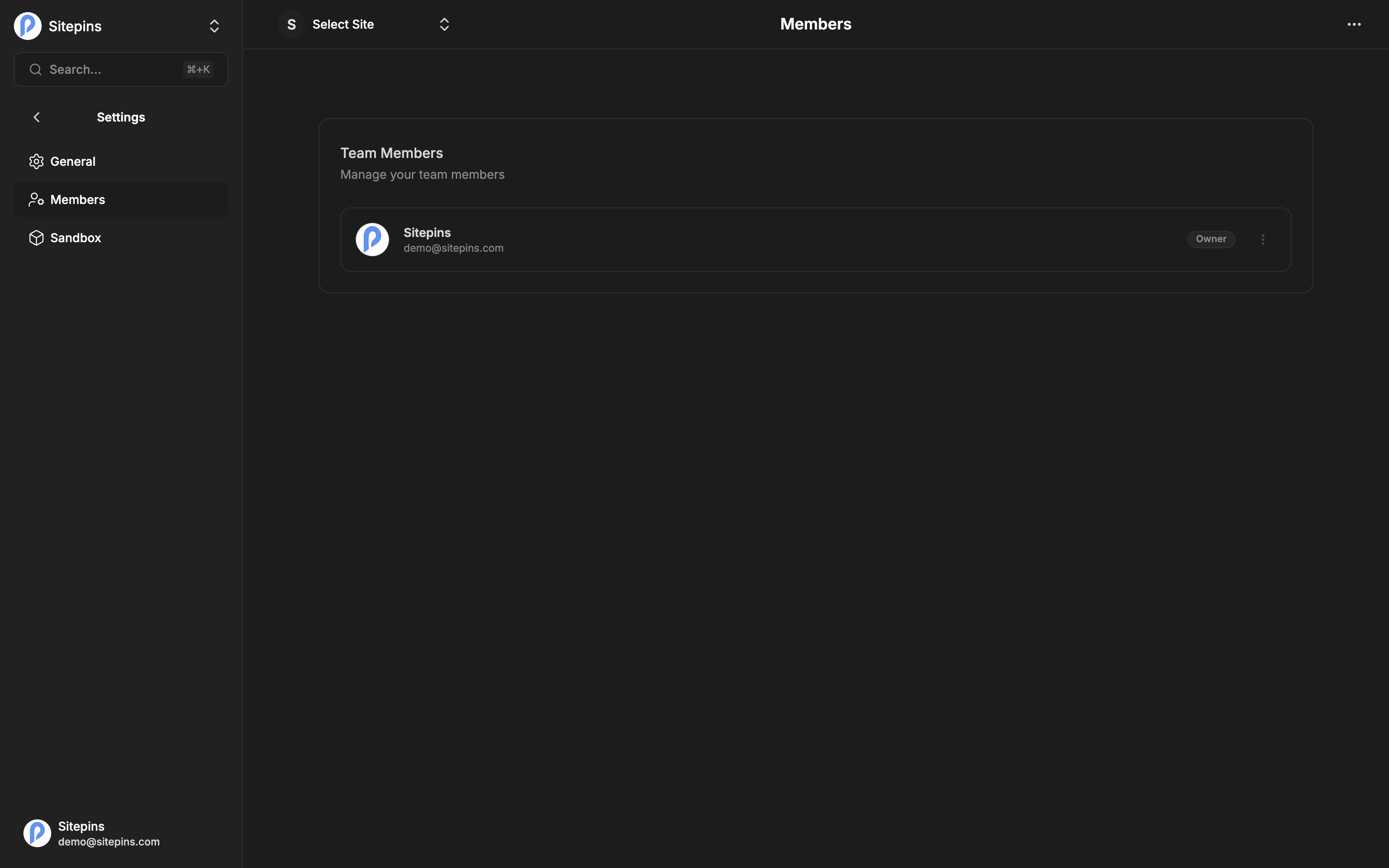
- Enter their email address
- Pick a Role
- Confirm
They get an email letting them know they’ve been added.
The person doesn’t need a Sitepins account yet. Invite an address that has never signed up and the membership waits for them — when they register with that email, they’re already in your organization with the role you assigned.
Plan limits apply. Pro allows three members per organization, and accounts without a paid plan only one. See Plans & Limits for the numbers on each tier. Self-hosted installs have no member limit.
Roles
Three roles, from most to least permission.
| Owner | Admin | Editor | |
|---|---|---|---|
| Edit content and media | ✅ | ✅ | ✅ |
| View projects and members | ✅ | ✅ | ✅ |
| Create and configure projects | ✅ | ✅ | — |
| Change the Git repository or branch | ✅ | ✅ | — |
| Manage schemas, snippets, arrangement | ✅ | ✅ | — |
| Add, remove, and re-role members | ✅ | ✅ | — |
| Edit organization settings | ✅ | ✅ | — |
| Restore a version / undo a commit | ✅ | ✅ | — |
| Archive or delete a project | ✅ | — | — |
| Move a project to another organization | ✅ | — | — |
| Archive or delete the organization | ✅ | — | — |
Owner is whoever created the organization. There’s one, and the role can’t be assigned to someone else from the members list.
Admin runs the organization day to day — projects, settings, people — but can’t destroy things. Give this to the people you’d trust with the repository.
Editor is the content role. Editors write, upload media, and publish, and can’t change how the project is wired up. This is the right role for writers, marketers, and clients.
Managing Members
The ⋮ menu on any member row:
- Make admin / Make editor — change their role (admins and owners only)
- Remove Member — take them out of the organization (admins and owners only)
- Leave Organization — appears on your own row (for admins and editors) to voluntarily exit the organization
- Delete User — remove the account entirely, with a typed confirmation
Removing someone or leaving an organization doesn’t touch past commits. Attribution remains in your Git history where it belongs. Organization owners cannot leave — they must archive, delete, or transfer projects first.
Choosing a Role
Client who updates their own copy → Editor. They can change everything on the site’s pages and nothing about how the site is built.
Freelancer or contractor building the site → Admin while they’re working, Editor or removed afterwards.
Another developer on your team → Admin.
Someone who needs to publish under review → Editor, plus a branch and pull request workflow so their changes get reviewed before merging.
Commit Attribution
By default, commits are attributed to the person who made them. Each user can choose in Preferences whether Sitepins commits with their own Git identity or as the Sitepins bot.
Members without a connected Git provider commit through the project’s connection — which is exactly what makes email-only access work.
Multiple Organizations
Separate clients, teams, or projects into separate organizations, each with its own members and roles. Someone can belong to several with a different role in each.
See Organizations.