Version History & Rollback
Because Sitepins is Git-native, every change you publish creates a permanent, restorable Git commit.
⏳ Browsing Past Versions
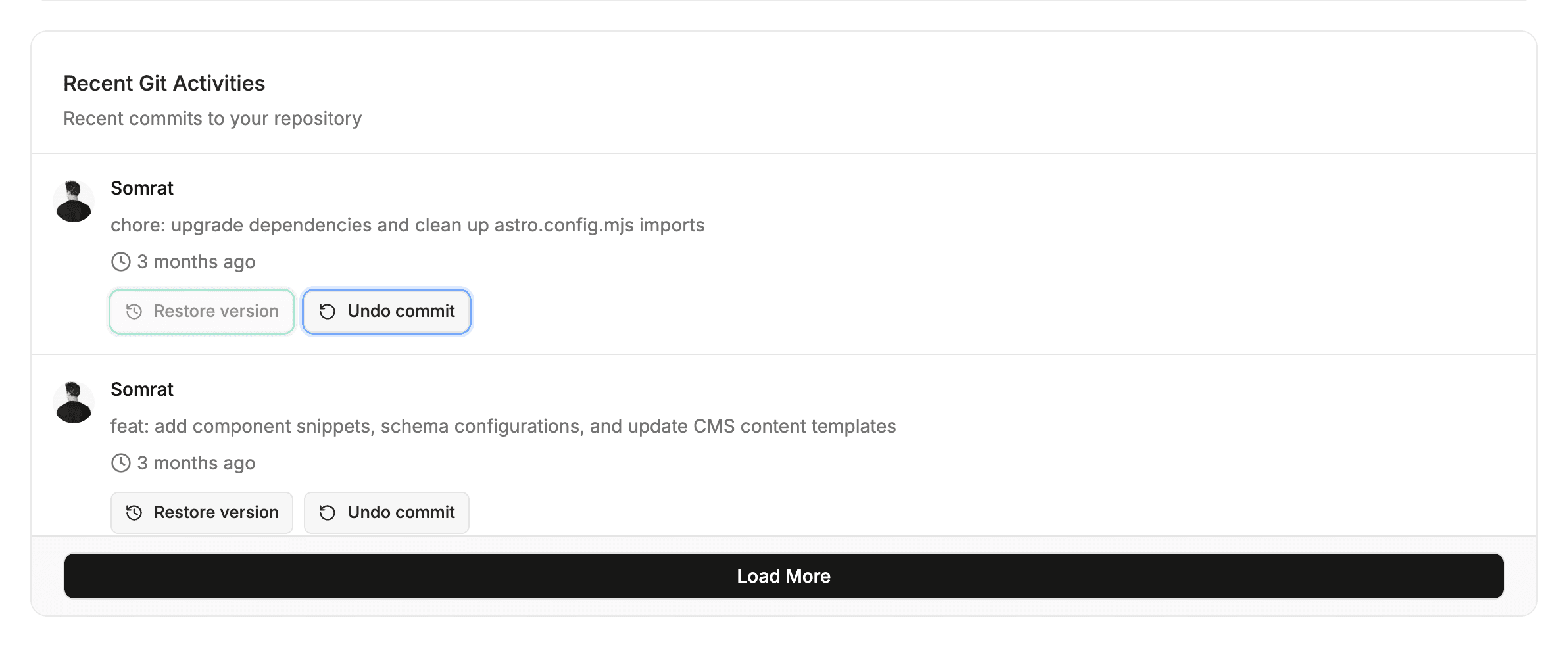
- Open any content file and click History in the top bar.
- View a timeline of past edits showing:
- Commit timestamp and author.
- Commit message explaining what was updated.
- Click any past version to view a side-by-side visual diff highlighting additions (green) and deletions (red).
↩️ 1-Click Rollback
Found a mistake in production?
- Click Restore this version.
- Sitepins applies the previous content and commits the revert cleanly to Git without rewriting historical commits.
Last updated on