Rich Text Editor
The Rich Text Editor lets content authors write Markdown visually. Everything you type translates cleanly back into standard Markdown files in your Git repository.
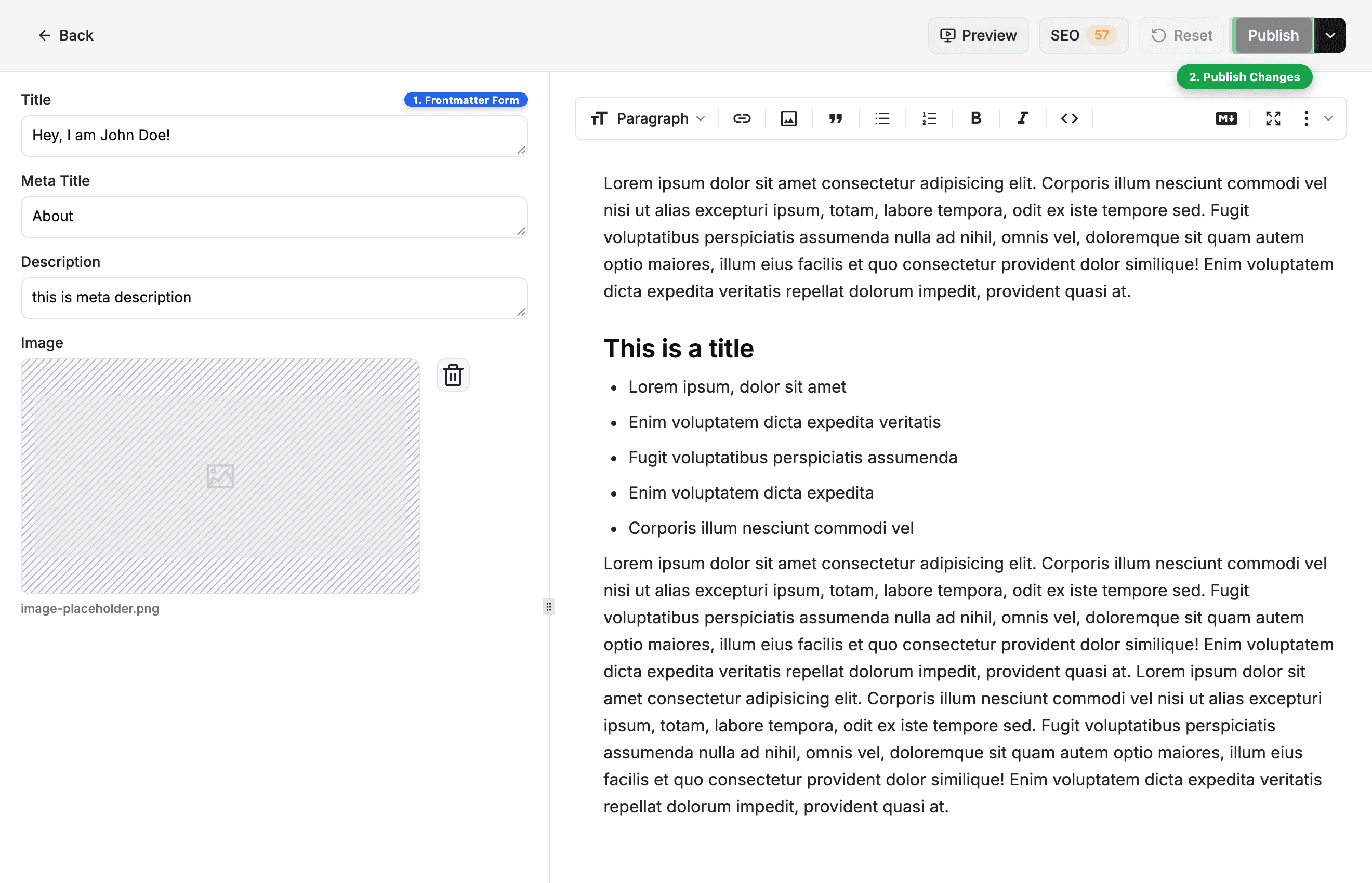
🖥️ Split Workspace Layout
- Left Panel (Frontmatter Form): Edit post metadata (Title, Slug, Publish Date, Author, Tags, Cover Image).
- Right Panel (Content Canvas): Distraction-free rich text writing area powered by Plate.js.
- Resize or Fullscreen: Drag the divider to resize panels, or click Expand to enter full-screen focus mode.
⚡ Fast Formatting Tools
1. Slash Menu (/)
Type / on any blank line to insert blocks:
- Headings: H1, H2, H3
- Lists: Bulleted, Numbered, Checklists
- Media & Embeds: Images, YouTube videos, Blockquotes, Tables, Code blocks
- AI Copilot: Trigger in-line AI drafting or explanations
2. Floating Selection Toolbar
Highlight any text to reveal the floating action bar:
- Quick bold (Cmd+B), italic (Cmd+I), links (Cmd+K), and inline code.
- Ask AI: Rephrase, summarize, fix spelling, or change tone on selected text.
3. Native Markdown Shortcuts
You can type standard Markdown triggers directly into the visual editor:
#creates an H1 heading.##creates an H2 heading.-or*creates a bullet list.1.creates a numbered list.>creates a blockquote.```creates a code block.
Last updated on