Files & Folders
Clicking a folder in the sidebar opens the directory view — a list of everything inside it, with the actions you’d otherwise need a Git client for.
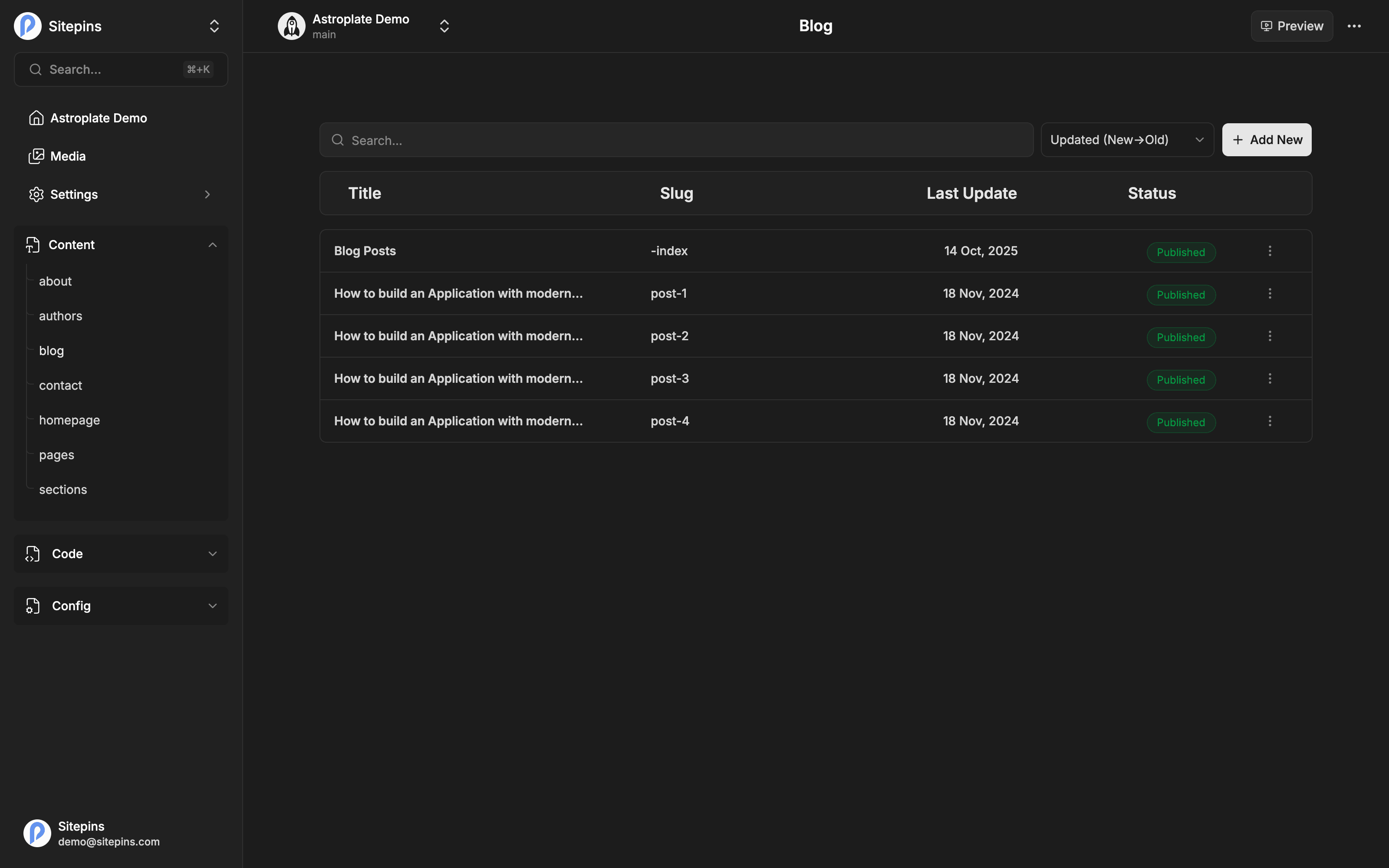
The Directory View
What the columns show depends on where you are:
Content folders
| Column | Contents |
|---|---|
| Title | The title from the file’s frontmatter |
| Slug | The URL slug |
| Last Update | When it last changed |
| Status | Draft or Published |
Code folders
| Column | Contents |
|---|---|
| File Name | The filename |
| Size | File size |
| Last Modified | When it last changed |
There’s a search box for filtering by name, and pagination for large folders.
Sorting
The sort dropdown offers:
- Title A→Z / Z→A (File name, in code folders)
- Created — newest or oldest first
- Updated — newest or oldest first
The default is most recently updated first. Your choice is reflected in the URL, so a sorted view is a link you can share or bookmark.
Creating a File
Click Add New in a folder and fill in:
- Title
- Slug — pre-filled from the title, editable
The new file is created using that folder’s schema, so all its fields and default values are already in place. Without a schema, you get a minimal file you can build up by hand.
File Actions
The ⋮ menu on any row:
| Action | What it does |
|---|---|
| Edit in CMS | Open in the visual editor — content files only |
| Edit as code | Open in the code editor — Pro |
| Duplicate | Copy the file, with an automatic or custom name |
| Rename | Change the filename |
| Delete | Remove it from the repository |
Renaming and deleting are commits, so both are reversible from version history.
Folder Actions
The … menu in a folder’s header:
| Action | What it does |
|---|---|
| New Folder | Create a subfolder |
| Rename Folder | Rename it |
| Duplicate Folder | Copy it and everything inside |
| Delete Folder | Delete it and its contents |
| Create Schema / Edit Schema | Define the fields for files in this folder |
Folders map directly to your repository. Deleting a folder deletes its files from Git. It’s recoverable from version history, but it is a real deletion, not a hide.
Changing How the Sidebar Looks
The tree mirrors your repository by default. If that structure doesn’t suit your editors — you want blog posts grouped under a friendlier name, or a specific file pinned to the top — you can rearrange the sidebar without moving anything in Git. See Sidebar Arrangement.
Draft and Published
Content files show a Draft or Published badge based on the draft flag in their frontmatter. How that affects your published site is up to your static site generator — Sitepins reads and writes the flag, your generator decides what to do with it.
Note that this is separate from a saved draft, which isn’t committed at all. See Saving & Publishing.