Interface Tour
A quick walkthrough of the core areas in Sitepins.
🏢 1. Organizations & Site Switcher
Everything lives inside an Organization:
- Organization Switcher: Top of the left sidebar. Switch between clients, teams, or personal projects.
- Site Switcher: Switch between websites within the active organization.
📊 2. Project Overview
Opening a site brings you to the Project Overview:
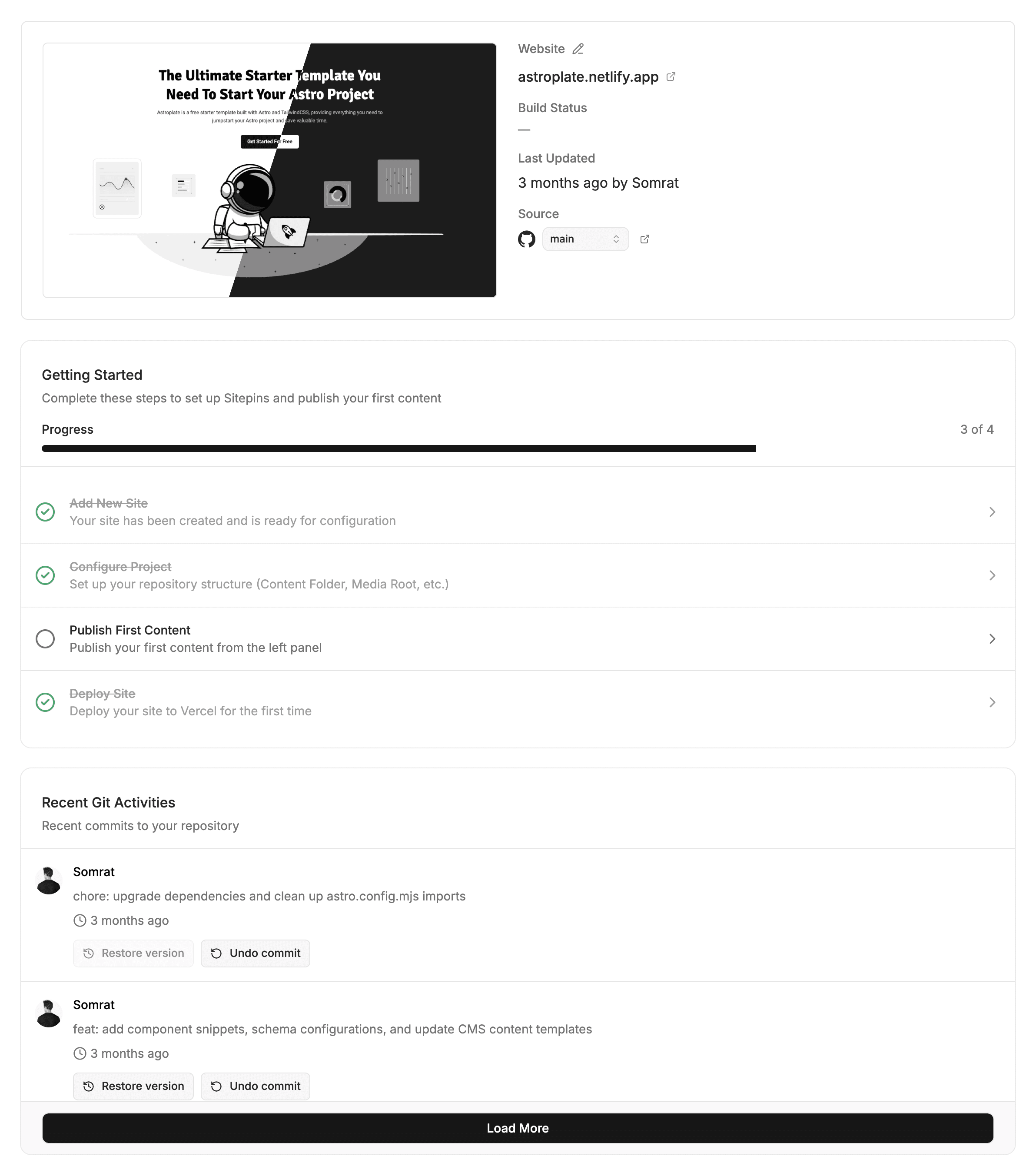
- Live URL & Git Status: Shows connected branch and deployment status.
- Recent Git Activities: Commit history with 1-click restore.
- Recent File Changes: Quick feed of recently modified pages and posts.
🗂️ 3. The Left Navigation Sidebar
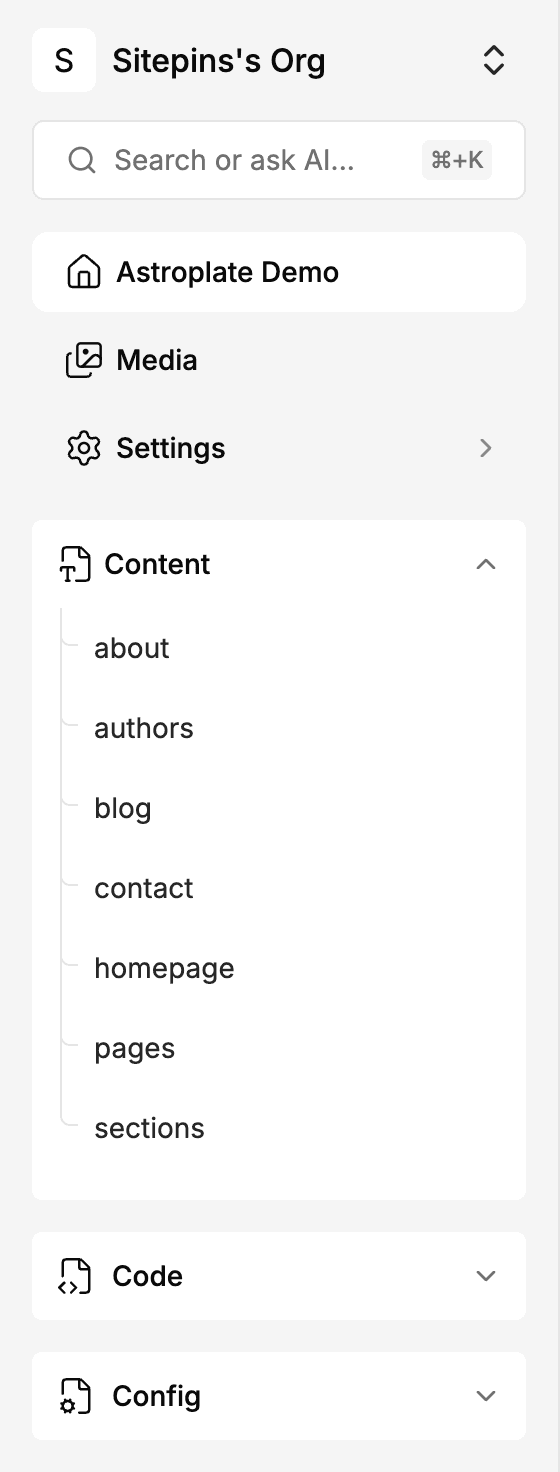
- Content: Your content tree (blog posts, pages, data collections).
- Media: Visual media library for images and downloads.
- Configs: Quick access to mapped site configuration files.
- Code: Monaco in-browser code editor for templates and styles (Pro plan).
- Settings: General settings, Git repository, schemas, and sidebar ordering.
✍️ 4. The Editor Workspace
Clicking any content file opens the split workspace:
- Left Panel: Frontmatter form (Title, Date, Author, Categories, Image picker).
- Right Panel: Block-based Plate.js rich text editor with Markdown shortcut support.
Last updated on