By default, Sitepins displays your content files based on the folder structure in your repository. However, sometimes that structure isn’t ideal for editors.
For example:
- You might want to group blog posts, documentation, and pages into logical sections.
- You may need to rename folders or files for clarity.
- You might want to highlight specific files or hide draft content.
The Content Arrangement feature lets you do all this—without changing anything in your actual codebase.
Key Features
- Virtual folders that don’t affect your repository
- Add individual files directly to the sidebar
- Create visual headings to break up sections
- Rearrange folders, files, and headings however you like
How It Works
In your Sitepins dashboard, open the Arrange Content panel.
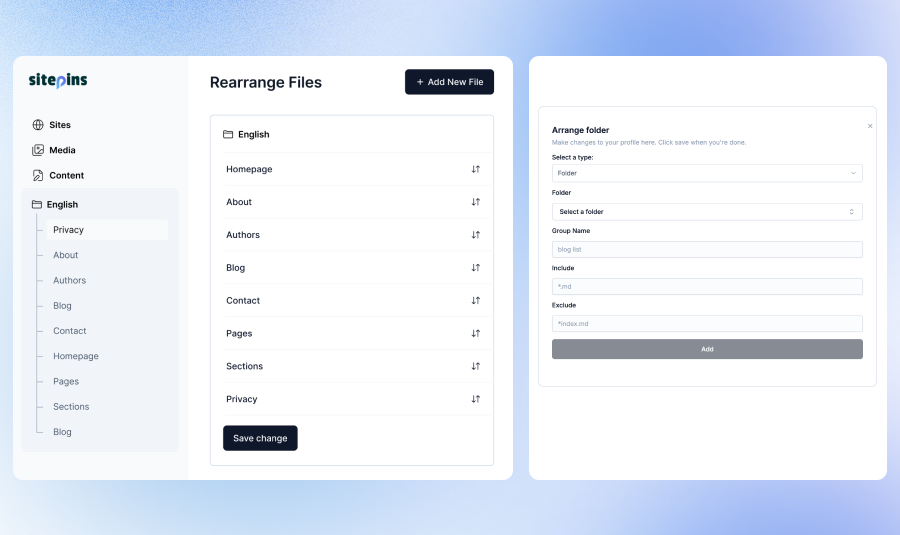
Here you can:
Add Folder Groups
Group content folders under a custom name in the sidebar. You can also filter files using glob patterns to include or exclude specific files.
Example:
- Folder:
src/content/blog - Group Name:
Blog Posts - Include:
*.md
Add Individual Files
Link to specific files like index.md and rename how they appear in the sidebar.
Example:
- File:
src/content/index.md - Display Name:
Home
Add Headings
Insert custom headings to separate and visually organize sidebar sections.
Example:
- Heading:
Documentation
Save Your Layout
Drag and drop to rearrange items. When you’re done, click Save. Your updated sidebar layout will be visible to all editors instantly.
You can change the arrangement at any time—nothing affects your repo’s actual structure.