The Media Library in Sitepins gives editors an easy way to upload, preview, and organize images and other media files.
All media uploads go directly into the folder you configure as your Media Root, and changes are reflected in your Git repository.
Key Features
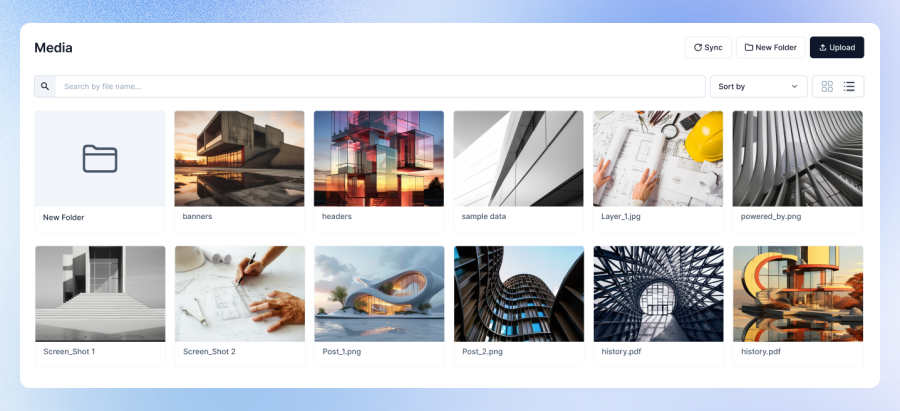
- Upload new images and media files via drag-and-drop or file picker
- Organize assets into folders without touching the file system
- Preview images directly in the UI
- Delete unused files from your repo
- Search and filter by file name
- Switch between grid and list views
Using the Media Library
Once your Media Root folder is configured (e.g., public/images), you can:
Upload Files
- Drag and drop images into the browser window
- Or click the upload button to browse for files
Uploaded files will appear instantly in the library and be saved in your Git repo.
Create Folders
- Organize your media by creating folders like
blog,products, orteam - Helps keep large libraries manageable
Preview Files
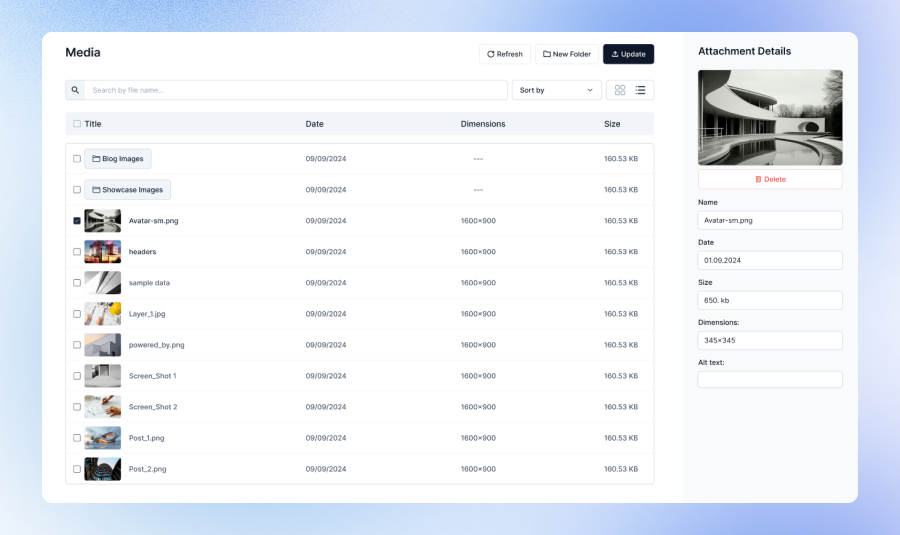
- Click any file to see a quick preview and basic metadata
Search and Filter
- Use the search bar to find files by name
- Sort by newest, oldest, or alphabetically
Delete Files
- Select any file and delete it to remove it from the repository
Files and folders in the Media Library directly map to your Git repo. Deleting a file here deletes it from the repo.
Understanding Media Root and Media Public Folders in CMS
Sitepins integrates with static site generators like Hugo, which support multiple file systems such as static and examplesite folders. To ensure your images display correctly in both the CMS and the final site, you need to configure two key settings:
Media Root
CMS Root Directory for Media Management
Example: public/images/blog
- This defines the base directory used by the CMS to manage images
- All uploads, organization, and file browsing happen relative to this folder
- The CMS UI displays folders starting from this root
- When you upload an image, it’s stored in this structure inside your Git repository
Media Public
Public URL Path for Image Access
Example: public
- This defines how your site references images publicly in the browser
- It ensures the CMS generates the correct URLs for use in Hugo templates and Markdown
- Hugo uses this path to create the final URLs when building your site
- Proper configuration here ensures all uploaded images are accessible when deployed
Tip: Setting the correct Media Root and Media Public paths is crucial to ensuring your images display correctly both in preview and live environments.
Best Practices
- Use consistent folder naming to keep your library organized
- Optimize images before uploading to reduce site load times
- Avoid uploading unnecessary assets or large files
Want to learn how Sitepins uses AI to help write and improve content? Check out the Open AI Integration.