Press Cmd+K (macOS) or Ctrl+K (Windows and Linux) anywhere in Sitepins to open global search. You can also click the search box at the top of the sidebar.
Search covers far more than files — it’s the fastest way to reach any screen in the app.
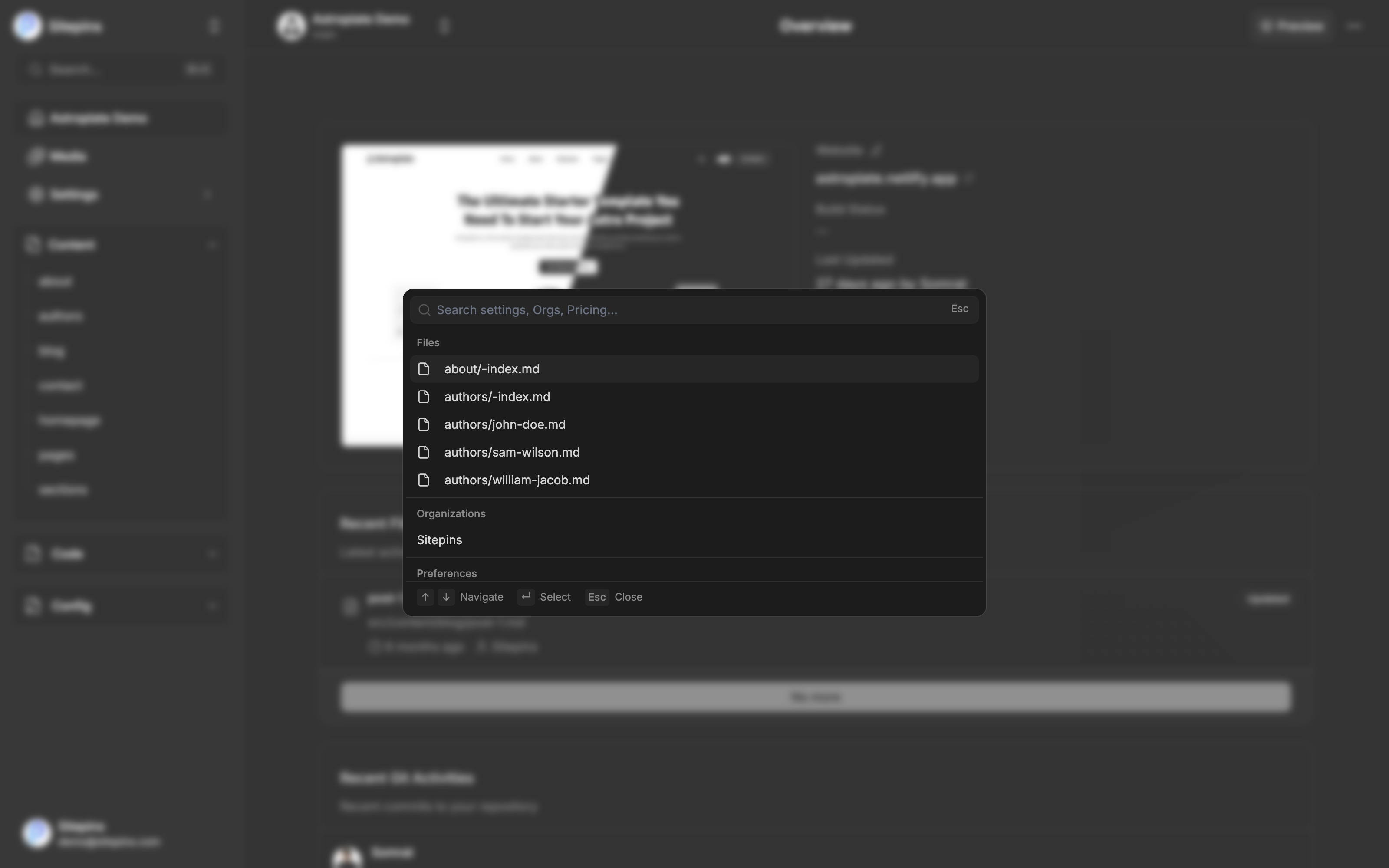
What It Searches
| Group | Results |
|---|---|
| Files | Content files, config files, media, and code files in the current project |
| Organizations | Every organization you belong to — selecting one switches to it |
| Preferences | Language, Theme, Co-author |
| Billing | Manage billing |
| Organization Settings | General, Members, Sandbox |
| AI Agent | Your AI provider and key settings |
| Support & Updates | Discord support, updates and feedback |
| Account | Display picture, display name, change password, set password, newsletter subscription |
File results only appear when you’re inside a project. The other groups are available everywhere.
Each file result carries an icon showing what it is — content, config, media, or code — and selecting one opens it in the right editor for its type.
Pro plan. Code files appear in search results on Pro and above, during the free trial, and in every self-hosted install. On the Hobby plan, search covers content, config, and media files.
Using It
- Type to filter. Matching runs across file paths, titles, and keywords.
- ↑ ↓ to move through results.
- Enter to open the highlighted result.
- Esc to close.
Account and preference results jump to the right screen and scroll to the specific section, so “Change Password” lands on the password form rather than the top of the account page.
Large Repositories
Search is capped so it stays responsive on big repos: it shows a handful of recent files when the box is empty, and up to 50 file matches once you start typing. Narrow the query if what you want isn’t in the list — searching for a folder name alongside the filename usually does it.
If a file you know exists isn’t showing up, check that it’s inside a folder Sitepins is configured to read. See Configure Your Site.