Pro plan. Available on Pro and above, during the free trial, and in every self-hosted install.
Snippets are reusable blocks of code — Hugo shortcodes, MDX/JSX components, or raw HTML — that you save once and insert anywhere.
What They’re For
Complex blocks are painful to retype and easy to get subtly wrong. A callout with four attributes, a pricing table, a CTA component: save it once as a snippet and editors insert it correctly every time, without knowing the syntax.
Saving a Snippet From the Editor
The fastest way is to save a block you’ve already written:
- Write the shortcode, component, or HTML block in the editor.
- Hover over it — a small toolbar appears at the top right.
- Click the plus (+) icon to open Save as Snippet.
- Give it a label, like “Alert Box” or “YouTube Embed”.
- Save.
Inserting a Snippet
- Click Snippets in the editor toolbar.
- Pick one from the list — there’s a search box once you have more than a few.
- It’s inserted at your cursor.
Smart insertion: if you insert a block-level snippet inside a paragraph, Sitepins converts it to its inline form so your text flow isn’t broken.
The Snippets button only appears once you have at least one snippet saved.
Managing Snippets
Go to Project Settings → Snippets.
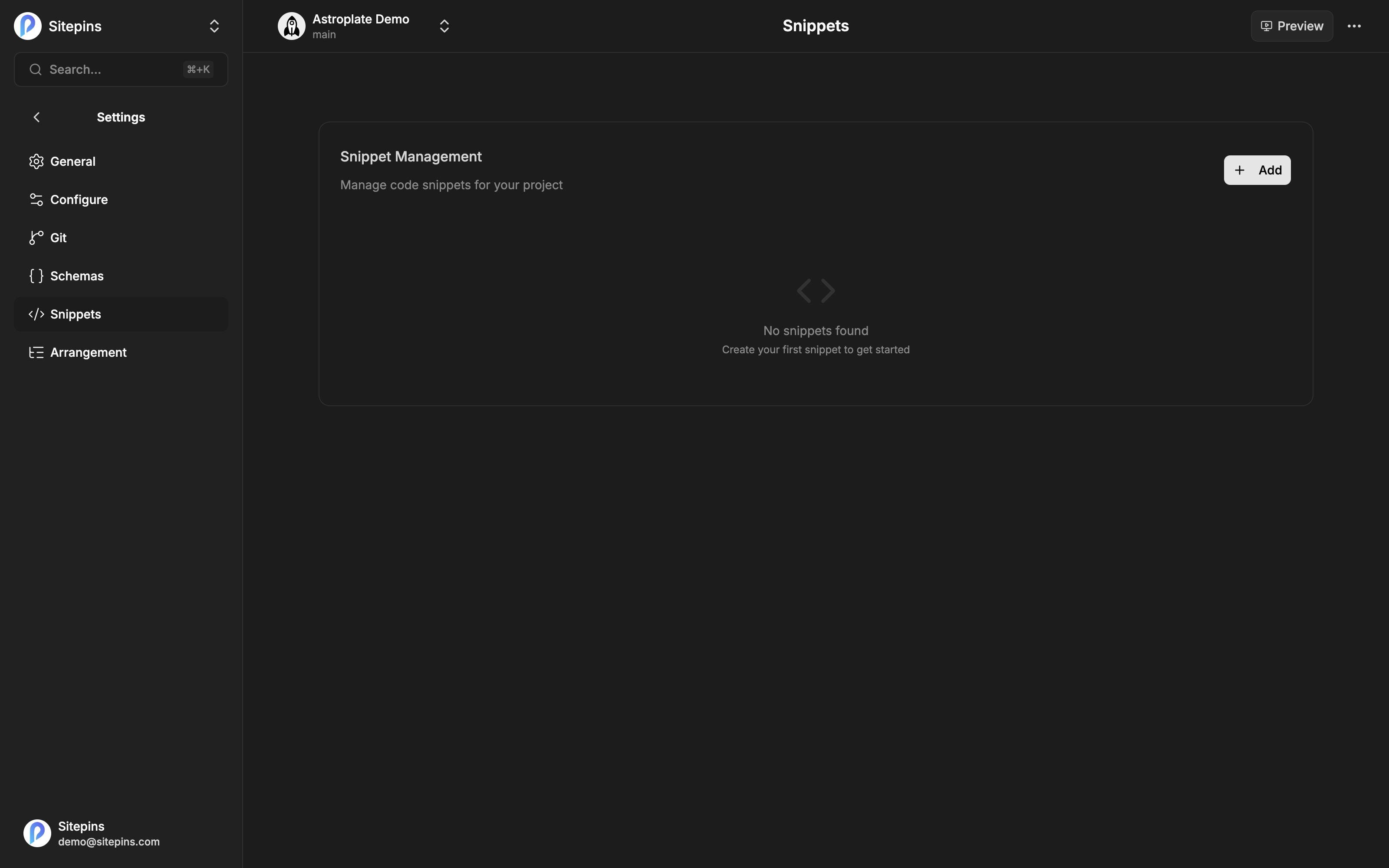
From there you can:
- Create a snippet from scratch, with a code editor for the body
- Edit an existing snippet’s label, code, or schema links
- Delete ones you no longer use
Each snippet has three fields:
| Field | What it does |
|---|---|
| Label | The name editors see in the insert menu |
| Applicable Schemas | Which content types this snippet appears for (optional) |
| Code | The snippet body |
Scoping Snippets to Schemas
A long snippet list is as bad as no snippets. Link a snippet to one or more schemas to control where it appears:
- A snippet with no schemas selected shows up everywhere
- A snippet linked to
blogonly appears while you’re editing a file in ablogfolder
Matching is based on the folder containing the file you’re editing, so a snippet linked to blog still works for a Hugo path like content/english/blog/post.md.
The management list shows either the linked schema names or “No schemas linked” for each snippet, so you can see the scoping at a glance.
Supported Formats
Snippets can hold any of the three block formats the editor understands:
- Hugo shortcodes —
{{< notice "warning" >}}…{{< /notice >}} - MDX / JSX components —
<Notice type="warning">…</Notice> - Raw HTML — including
<iframe>embeds, which render a live preview in the editor
Each round-trips through the editor unchanged.
Where They’re Stored
Snippets are saved as JSON files in your repository at:
.sitepins/snippet/They’re version-controlled alongside your code and shared with everyone on the team — a snippet one person creates is immediately available to the rest.
Best Practices
- Use them for repetition, not everything. Complex tables, CTAs, media embeds, callouts.
- Name them for what they do. “YouTube Embed” beats “YT-1”.
- Scope them with schemas once you have more than a handful, so the insert menu stays short.