The rich text editor is where most content gets written. It edits Markdown and MDX visually, and everything you do maps back to real Markdown when the file is saved.
The Layout
Content files open in two panes: the frontmatter form on the left, and the content editor on the right. Drag the divider to resize. Below roughly 1536px wide they become tabs instead.
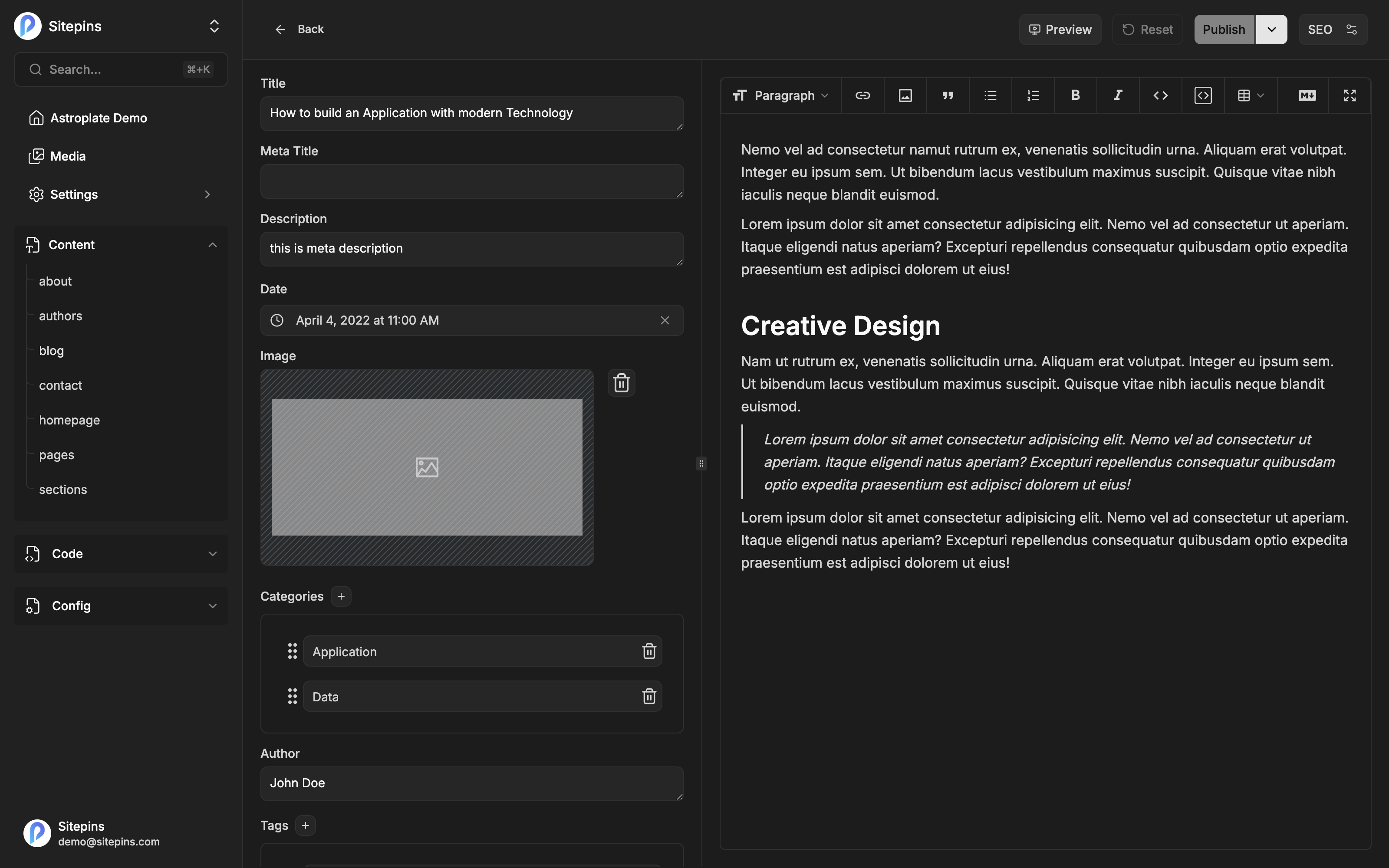
The frontmatter form is generated from your file’s existing fields, or from a schema if the folder has one.
If a file’s frontmatter doesn’t match its folder’s schema, Sitepins shows a Schema Mismatch Detected notice with two choices: Show Actual Fields (edit what’s really in the file) or Show Schema Fields (edit against the schema, filling in what’s missing).
The Toolbar
The toolbar sits above the content pane and adapts to the width available. From left to right:
- Headings dropdown — paragraph and H1 through H6
- Link, Image, Quote
- Bulleted list, Numbered list
- Bold, Italic, Code
- Code block, Table
- Snippets — insert a saved block (Pro, and only shown once you have snippets)
- Raw Markdown — switch to the Markdown view
- Expand — fullscreen the editor
When the window is too narrow, less-used buttons collapse into an overflow … menu rather than disappearing. Code, quote, and code block always move there below 640px, and the Expand button is hidden on smaller screens.
Buttons that don’t apply where your cursor is are hidden — put the caret inside a table and the table-incompatible items drop out of the toolbar.
The Selection Toolbar
Select text and a floating toolbar appears with the actions that make sense for a selection:
- Ask AI — send the selection to the AI assistant
- Turn into — convert the block to a different type
- Bold, Italic, Code, Link
The Slash Menu
Type / on an empty line to open the block inserter:
AI — open the AI assistant
Basic blocks — Text, Heading 1, Heading 2, Heading 3, Bullet List, Num List, Code Block, Table, Blockquote
The slash menu is disabled inside code blocks, so you can type a / in code without triggering it.
If you pick AI before connecting an AI provider, Sitepins opens the AI Agent settings so you can set one up.
Keyboard Shortcuts
mod is Cmd on macOS and Ctrl elsewhere.
| Action | Shortcut |
|---|---|
| Heading 1–6 | mod+Alt+1 … 6 |
| Bold | mod+B |
| Italic | mod+I |
| Underline | mod+U |
| Inline code | mod+E |
| Strikethrough | mod+Shift+X |
| Highlight | mod+Shift+H |
| Subscript | mod+, |
| Superscript | mod+. |
| Blockquote | mod+Shift+. |
| Code block | mod+Alt+8 |
| AI assistant | mod+J |
Markdown Input Rules
You can keep typing Markdown and the editor converts as you go:
#through######followed by a space become headings>starts a blockquote-or*starts a bulleted list,1.a numbered list`wraps inline code,---or___on their own line insert a horizontal rule$…$becomes an inline equation,$$…$$a block equation
Automatic Text Substitution
Some sequences are replaced as you type:
- Arrows —
->becomes →,<-becomes ← - Comparisons and equality —
<=,>=,!= - Fractions —
1/2becomes ½, and 17 others - Legal marks —
(c),(r),(tm) - Smart quotes and guillemets
Substitution is disabled inside code blocks, so code stays exactly as typed.
Working with Blocks
Every block has a drag handle on its left edge. Use it to:
- Drag the block to a new position
- Click it to select the whole block
You can select multiple blocks and move or delete them together. Dropping an image file directly into the editor uploads it and inserts it where you dropped it.
Emoji
Type : followed by a name to open the emoji picker — :smile, :rocket, and so on.
Pasting
- From Word —
.docxcontent pastes with its structure intact rather than as flat text - From a web page — images in the pasted HTML are downloaded, added to your media folder, and committed alongside your content
- A link with text selected — wraps the selection in a link
Where to Go Next
- Blocks & Embeds — tables, code, Mermaid diagrams, math, iframes, and images
- Markdown Mode — the raw view
- Saving & Publishing — getting your changes into Git