Pro plan. Available on Pro and above, during the free trial, and in every self-hosted install. In all cases you supply your own API key.
Sitepins doesn’t resell AI. You bring a key from a provider you already have an account with, and Sitepins uses it directly from your browser.
Connect a Provider
Open AI Agent from the account menu, or search for it with Cmd+K.
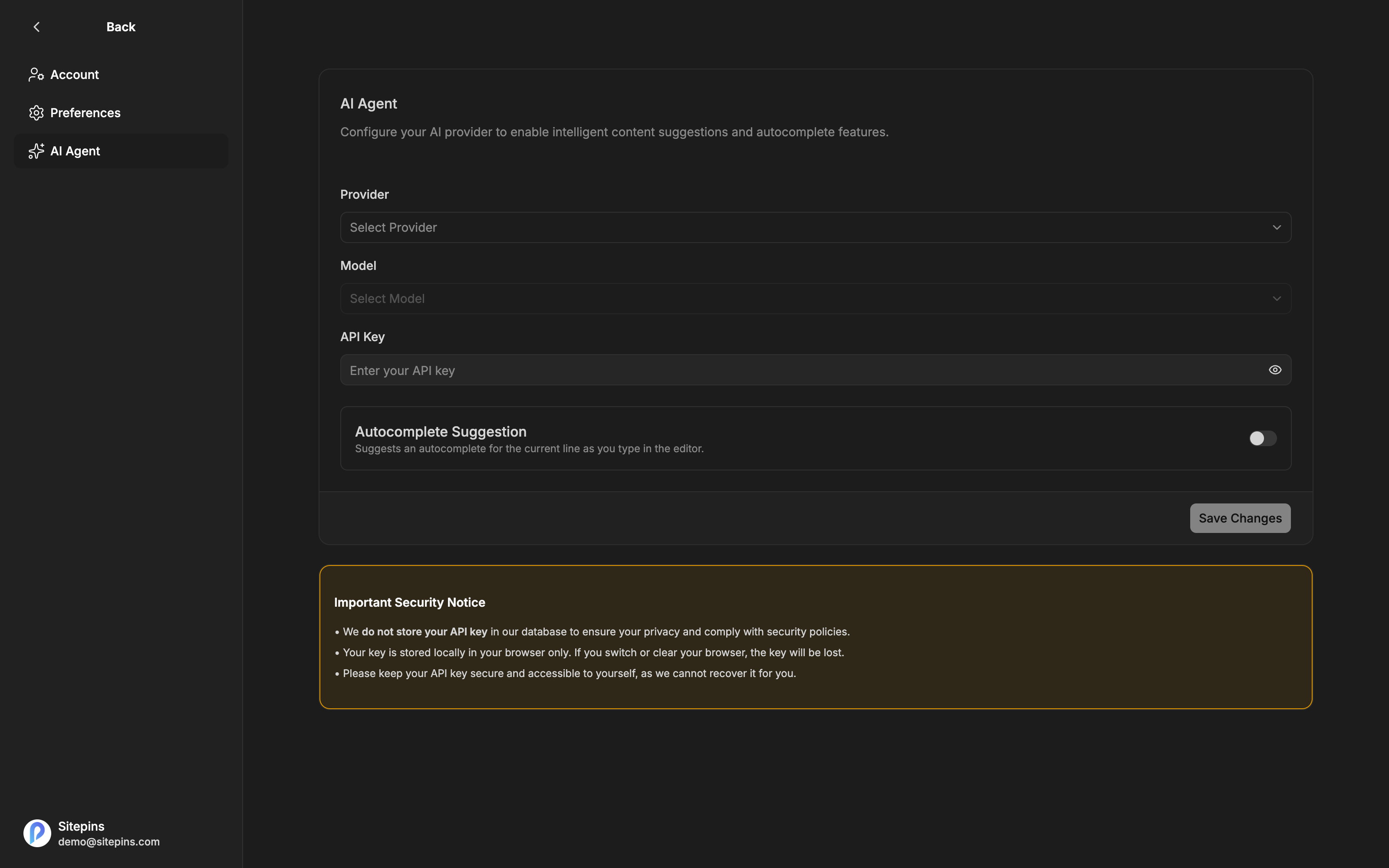
- Choose a Provider
- Choose a Model from the preset list, or pick Enter manually and type a model ID
- Paste your API Key
- Optionally enable Autocomplete Suggestion
- Save Changes
Supported providers
| Provider | Where to get a key |
|---|---|
| OpenAI (ChatGPT) | platform.openai.com/account/api-keys |
| Anthropic (Claude) | console.anthropic.com |
| Google (Gemini) | aistudio.google.com/apikey |
| xAI (Grok) | console.x.ai |
Each provider offers a short preset list of current models. If the one you want isn’t there — a newer release, or a model specific to your account — choose Enter manually and paste the model ID. Each provider’s settings link to its model documentation so you can look the ID up.
Where your key is stored
Your API key is stored in your browser only. It is never written to the Sitepins database and never shared with other users or teammates. Clear your browser data or switch browsers and you’ll need to enter it again.
Use Delete Key to remove it.
Because the key is per-browser, each person on your team connects their own. There’s no shared team key, and usage is billed to whoever’s key made the request.
Using AI in the Editor
Two entry points:
- Type / and choose AI
- Select text and click Ask AI in the floating toolbar
- Or press mod+J
What you can ask for
Ask AI anything takes your own prompt. The rest are one-click commands, grouped by what they do.
Writing
- Continue writing
- Improve writing
- Fix spelling & grammar
- Make longer / Make shorter
- Simplify language
- Emojify
Understanding
- Explain
- Add a summary
- Comment — leaves inline review notes on blocks
Generating
- Generate Markdown sample
- Generate MDX sample
Reviewing the result
Nothing is applied until you accept it. Each result offers:
- Accept — apply it
- Reject / Discard — throw it away
- Try again — regenerate
- Insert below — add it after the current block instead of replacing
- Replace selection — swap in the generated text
Autocomplete Suggestion
Turn on Autocomplete Suggestion in AI Agent settings and the editor offers inline ghost-text continuations as you type. Accept the suggestion or keep typing to ignore it.
It uses the same provider and key as everything else. If you find it distracting mid-draft, toggle it off — the on-demand commands still work.
This feature was previously called Sitepins Copilot.
Where AI Works
AI editing runs in the rich text editor, on Markdown and MDX files.
It isn’t available in raw Markdown mode, the code editor, or on non-Markdown formats like JSON and YAML config files.
Cost and Limits
Sitepins adds no quota or rate limit of its own. What you spend is what your provider charges for the requests you make, on your own account. Autocomplete makes small, frequent requests while you type, so it uses more calls than the on-demand commands — worth knowing if you’re watching a budget.
SEO Is Not AI
The SEO panel is rule-based and needs no API key. It works whether or not you’ve connected an AI provider.
Troubleshooting
The AI menu opens the settings page instead of running. No model is configured yet — finish the setup above.
Requests fail immediately. Check the key is valid and has credit at the provider, and that the model ID exists for your account. A manually entered model ID that your account can’t access will fail at the provider, not in Sitepins.
Your key disappeared. It lives in browser storage. Clearing site data, switching browsers, or using a private window means re-entering it.