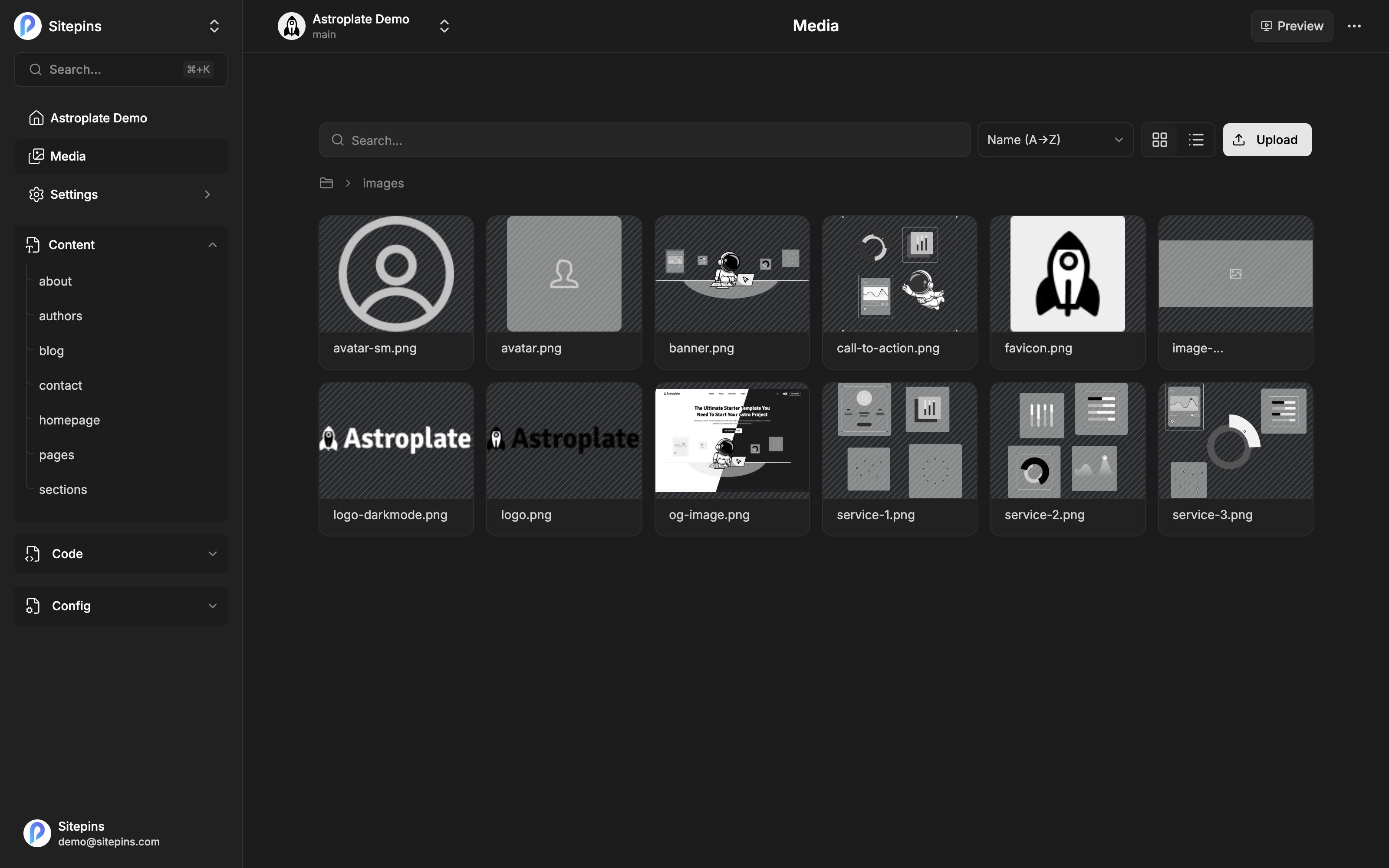
The media library manages the images and files in your repository’s media folder. Every upload, rename, move, and delete is a Git commit.
Uploading
Two ways:
- Drag and drop files anywhere onto the media page
- Click Upload and pick files
Before anything is committed, Sitepins shows a preview so you can confirm what you’re adding. Files land in the folder you’re currently viewing.
Size limits and warnings
There are per-file size limits, separate for images and video. Exceeding one gets you a clear message naming the type and the limit rather than a silent failure.
If an upload would change a file’s extension — replacing logo.png with logo.jpg — Sitepins warns first, since that breaks any existing reference to the old path.
Name conflicts
Uploading a file whose name already exists opens a conflict dialog with three options:
| Option | Result |
|---|---|
| Stop | Cancel the upload |
| Keep both | Upload with a unique name |
| Replace | Overwrite the existing file |
Replace keeps every existing reference working, since the path doesn’t change. Keep both is safer if you’re not certain the old file is unused.
Browsing
- Grid view for scanning visually, list view for scanning names and dates — toggle in the header
- Breadcrumbs to move up the folder tree
- Search by filename
- Pagination for large libraries
Videos show a generated thumbnail rather than a generic file icon.
Sorting
- Name A→Z / Z→A
- Created — newest or oldest first
- Updated — newest or oldest first
File Details
Click any file to open the detail sidebar:
- Name, Date, Size, and Dimensions
- Copy — copy the file’s path for pasting into content
- Rename — change the filename
- Move — relocate it, browsing or searching the folder tree
- Delete — remove it from the repository
Renaming, moving, and deleting change the file’s path. Anything referencing the old path — content files, templates, config — will break. Sitepins updates the repository, not the references inside your content.
The media library maps directly to your Git repository. Deleting a file here deletes it from the repo. It’s recoverable from version history, but it is a real deletion.
Using Media in Content
From the editor, click the Image button to open the media picker. From there you can:
- Browse your media folders, with breadcrumbs and search
- Upload a new file without leaving the editor
- Paste an external image URL to reference an image hosted elsewhere
You can also paste an image from a web page, or drop a file straight onto the editor — both upload it and commit it with your content. See Blocks & Embeds.
Media Folder and Public Folder
Two settings, configured at Project Settings → Configure, determine how media works.
Media Folder
The real directory in your repository where files live.
Example: public/images/blog
This is the root the media library browses. Uploads are written here, and the folder structure you see is the folder structure in Git.
Public Folder
The prefix that gets stripped when generating URLs.
Example: public
An image stored at public/images/blog/hero.png with a public folder of public is referenced as /images/blog/hero.png in your content. This is what makes URLs work on the deployed site.
Hugo users typically set this to static; Astro and Next.js users to public.
Get the public folder wrong and images look fine in the editor but 404 on the live site. If that’s happening, this setting is the first place to check.
Folders
The media library browses whatever folder structure exists in your repository. New folders come from your repository or from uploading into a path — there’s no “create empty folder” button, because Git doesn’t track empty folders.
Where Avatars and Thumbnails Live
Project thumbnails, organization images, and profile pictures are not stored in your repository. They live in Sitepins’ own object storage, since they’re application data rather than site content.
Your content media is always in Git. See Media Storage if you’re self-hosting and need to configure the bucket.
Best Practices
- Optimize images before uploading — Sitepins commits what you give it
- Use consistent folder names so the library stays navigable as it grows
- Prefer Replace over delete-and-reupload when swapping an image, so existing references keep working