Project Settings → Git controls which repository and branch a project reads and writes.
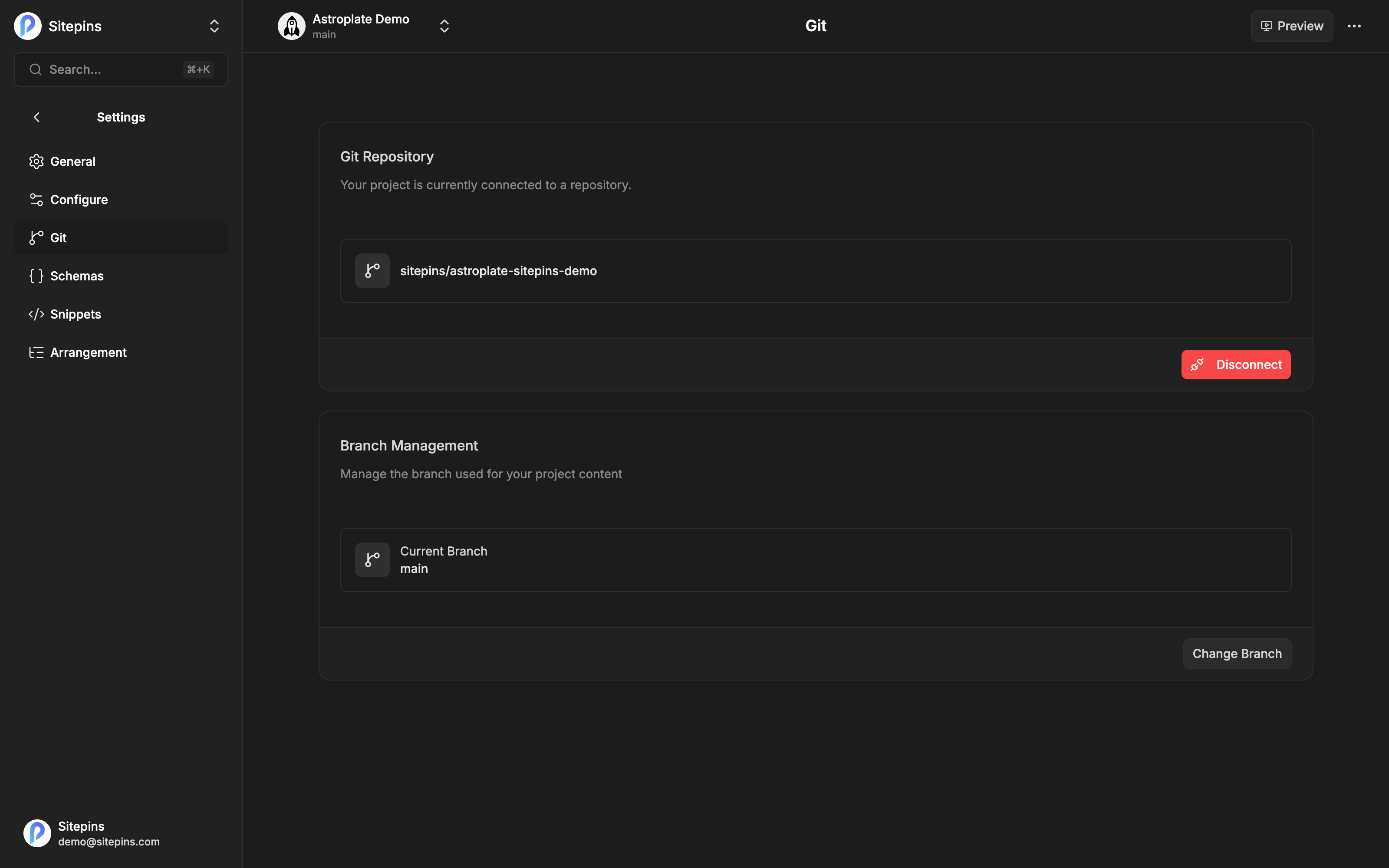
Git Repository
When connected, the card shows the repository as owner/repo, along with how long it’s been connected.
Switching repositories
- Disconnect the current repository, confirming when asked
- Choose a Provider — GitHub or GitLab
- Pick a Repository from the searchable list
- Pick a Branch — the repository’s default is preselected
- Click Connect Repository
Switching repositories doesn’t migrate anything. Your schemas, snippets, and arrangement are stored in the repository, so a new repo means the new repo’s configuration — or none, if it has never been set up. Content paths from the old repo may not exist in the new one.
Requires the admin or owner role.
Missing a repository?
Click Configure on GitHub (or GitLab) to reopen the installation flow and grant access to more repositories. The list refreshes when you return.
Branch Management
The Branch Management card shows the current branch and lets you change it:
- Change Branch
- Select a branch
- Update Branch
This sets the project’s branch for everyone. To switch your own view temporarily, use the branch switcher in the project header instead — see Branches & Pull Requests.
GitHub Permissions
Sitepins connects through a GitHub App, which you install and scope yourself. During installation you choose:
- All repositories on the account, or
- Only select repositories
Selecting specific repositories is the more conservative option and is what most people should pick.
The app requests:
| Permission | Access | Why |
|---|---|---|
| Code | Read and write | Read and commit your content files. This is the core of what Sitepins does. |
| Metadata | Read-only | List repositories and branches. Mandatory for any GitHub App. |
| Pull requests | Read and write | Create and merge PRs from Sitepins |
| Commit statuses | Read-only | Read build results for the status badge |
| Deployments | Read-only | Read deployment state |
| Administration | Read and write | Create a repository when you clone a template |
If Pull requests: write is missing, branch and PR features report the problem explicitly and tell you to update the app’s permissions.
Installing into an organization
If you install into a GitHub organization you don’t own, GitHub sends an approval request to an owner instead of installing immediately. You’ll see an “Installation Request Sent” screen, and the repositories appear once someone approves.
GitLab Permissions
GitLab uses OAuth with api and read_user scope. api is what allows reading and writing repository files, branches, and merge requests.
Team plan. GitLab repositories require the Team plan on Sitepins Cloud. Self-hosted installs support both providers with no restriction.
Token Expiry
Provider tokens are refreshed automatically. If a refresh fails — you revoked access, or the app was uninstalled — Sitepins prompts you to reauthenticate. Reconnecting restores access without losing any project configuration.
Account Sign-In vs Repository Access
Worth repeating, because it causes real confusion:
- Signing in with GitHub authenticates you as a Sitepins user
- Connecting a repository is a separate GitHub App installation that grants file access
You can sign in with Google and connect GitHub repositories. You can sign in with GitHub and still see no repositories until the App is installed. The two are independent.
Disconnecting
Disconnect severs the link between the Sitepins project and the repository. The project stays; it just has nowhere to read or write until you connect something.
Your repository is untouched. To also remove Sitepins’ access to it, uninstall the GitHub App (or revoke the GitLab authorization) from your provider’s settings.