Live preview runs your actual site — your framework, your dev script — in a sandbox. That sandbox runs on Vercel, using a token you provide.
It’s a one-time setup per organization.
Why Your Own Token
The sandbox runs on your Vercel account and your own quota, not a shared Sitepins pool. That means:
- Any Vercel plan works, including the free tier
- Nothing about your site’s code or content passes through a third party’s build infrastructure
- You can see and control the sandbox project from your own Vercel dashboard
Connecting
Go to Organization Settings → Sandbox.
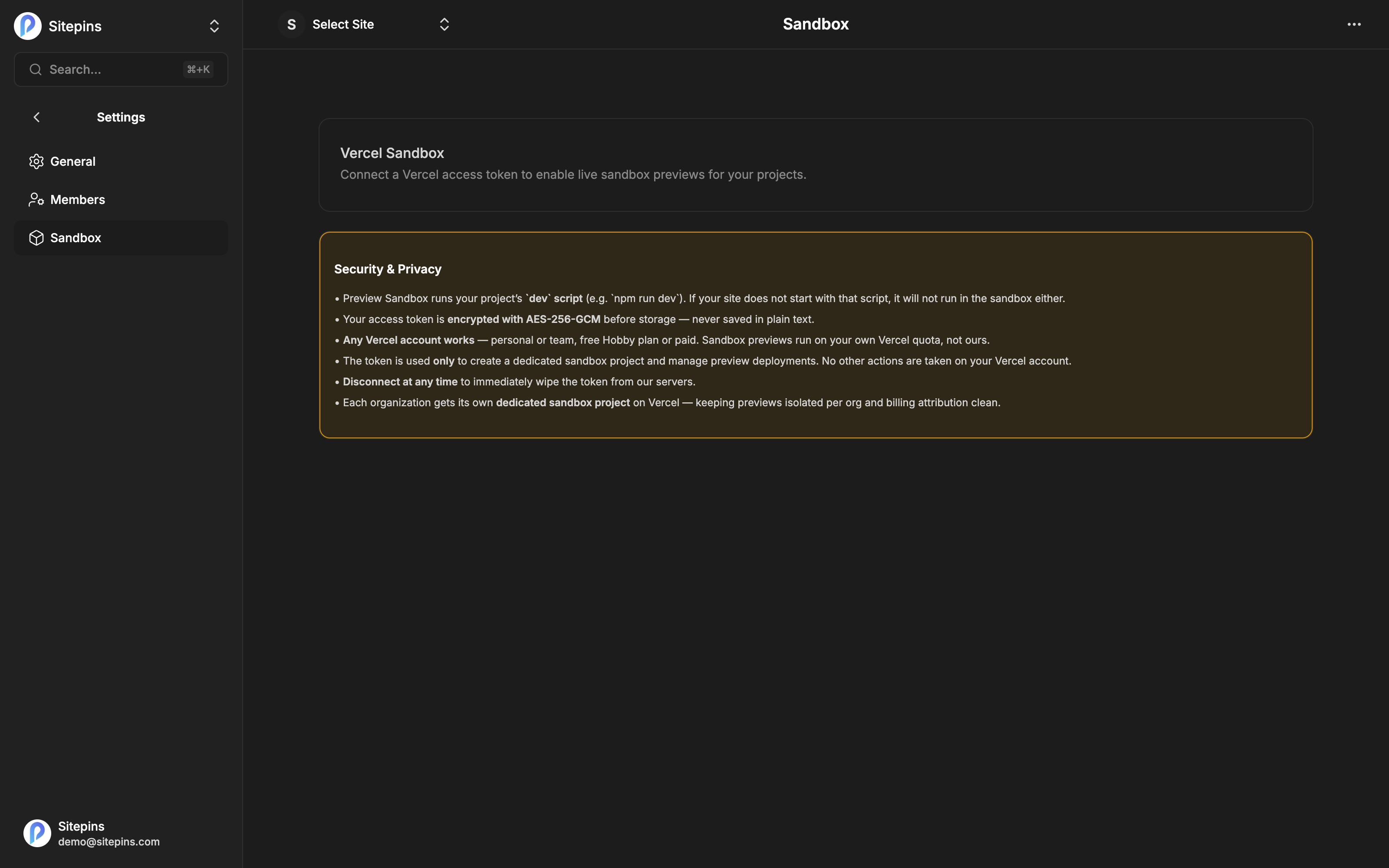
- Create an access token in your Vercel account settings, with full account scope
- Paste it into the Vercel Access Token field
- Sitepins validates it and lists the accounts it can reach
- Choose your Personal Account or a Team
- Save
Sitepins then runs three steps: validating the token, creating a dedicated sandbox project on your Vercel account, and saving the settings.
You’ll see one new project in your Vercel dashboard. That’s the sandbox — it doesn’t serve your production site and doesn’t interfere with your existing deployments.
What Sitepins Does With the Token
Stated explicitly, because it’s a broad credential:
- The token is encrypted at rest with AES-256-GCM
- It’s used only for the sandbox project — creating it and running preview sessions
- One dedicated sandbox project per organization
- Disconnecting wipes the stored token
Managing the Connection
| Action | Effect |
|---|---|
| Update token | Replace the stored token — use this after rotating it on Vercel |
| Change token | Point at a different Vercel account or team |
| Disconnect | Remove the token entirely |
Disconnecting stops live preview working for every project in the organization, not just the one you’re looking at.
Who Can Manage It
Organization owners and admins. Editors see the setting but can’t change it:
Only org owners and admins can manage sandbox settings.
Scope
The connection is per organization. Every project in the organization shares it. Multiple organizations each need their own token — they can point at the same Vercel account.
Troubleshooting
“Token invalid” on connect. The token was mistyped, revoked, or created with insufficient scope. Create a fresh one with full account scope.
The Preview button sends you here. No token is connected for this organization yet.
Previews fail to start. The token is fine but the sandbox can’t run your site. Check that your repository’s dev script works from a clean clone — the sandbox does install then dev with no local state, so a missing dependency or a required environment variable surfaces here. See Live Preview.
Your Vercel usage went up. Sandboxes run on your account. Sessions are capped at 45 minutes and shut down when you close the preview tab, but they are real compute. Disconnect the token if you don’t want previews running at all.